Get started with SimpleDash
Sign in with Google, let SimpleDash find your Google Analytics site, and see your visitors on one page in under a minute. No setup and no tracking code.
To start, sign in with the Google account that can see your Google Analytics 4 property, and allow read-only access. SimpleDash finds your site on its own and shows its numbers straight away, with the history GA4 already has.
Before you start
You need a website that already sends data to Google Analytics 4. If it doesn't yet, follow Add Google Analytics 4 to your website first: it takes about five minutes, and SimpleDash shows numbers as soon as GA4 has some.
You don't need to add any code for SimpleDash itself.
1. Sign in with Google
Open simpledash.app and choose See my dashboard, free. Google asks which account to use, then shows what SimpleDash may do.
Make sure the box for Google Analytics is ticked. It asks for one permission: https://www.googleapis.com/auth/analytics.readonly, which can only read. SimpleDash can't change your GA4 settings, add users or delete anything. What SimpleDash can see explains it in full.
2. Let SimpleDash find your site
If your Google account can see one GA4 property, SimpleDash opens it.
If it can see several, SimpleDash compares the visitors of the last 7 days for up to 20 of them and opens the busiest. The site's name comes from its web stream, so you see "mysite.com" rather than "Property 123456".
You can open any other site from the site menu at the top of the dashboard. See Switch between your sites.
No Google Analytics site found?
The Google account you used can't see a GA4 property. Sign in with the account that owns it, ask the owner to add you as a Viewer in GA4, or set up GA4.
3. Read your dashboard
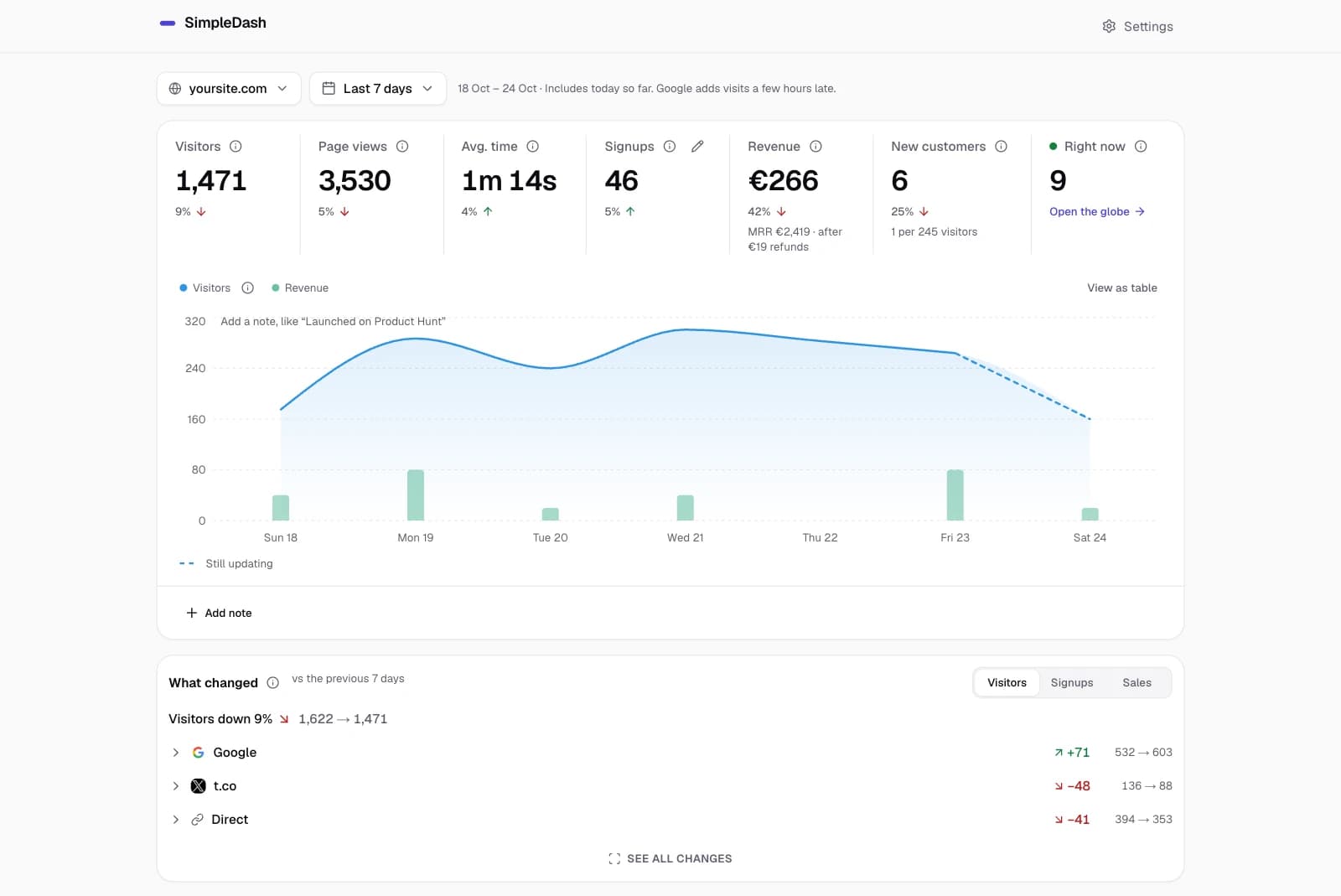
The top of the page shows four numbers for the last 7 days (today included), each compared with the 7 days before:
- Visitors: people Google Analytics counted.
- Page views: how many times your pages were viewed.
- Avg. time: how long a visitor spends with your site open and in view.
- Signups: how many times the action you pick happened (see below).
Under them is a chart of visitors per day, and below that the lists: where visitors came from, top pages, AI assistants, countries, devices and who is on your site right now. The dashboard, card by card explains each one.
4. Two things worth doing first
- Choose your signup action. GA4 doesn't know which event means "someone signed up". In the Signups number, pick the event that does. How to choose it.
- Share your stats, if you like. Turn on a public stats page to share your numbers when you build in public. Notes and anything private never appear on it.
What's next
- Switch between your sites if you have more than one.
- Date ranges: Today, the last 7 or 30 days, 12 months and any dates you pick.
- Free and Pro: what Pro adds, including the Monday email.
Last updated
Overview
How SimpleDash works, what it shows and what it can see. Your Google Analytics 4 data on one simple page, with a Monday email and a public stats page.
What SimpleDash can see
SimpleDash asks Google only for read-only access to Google Analytics. What it can and can't see, why Google calls it sensitive, and how to remove it.