Settings and billing
Where every SimpleDash setting lives, how to upgrade to Pro, switch between monthly and yearly, update your card, see invoices and cancel.
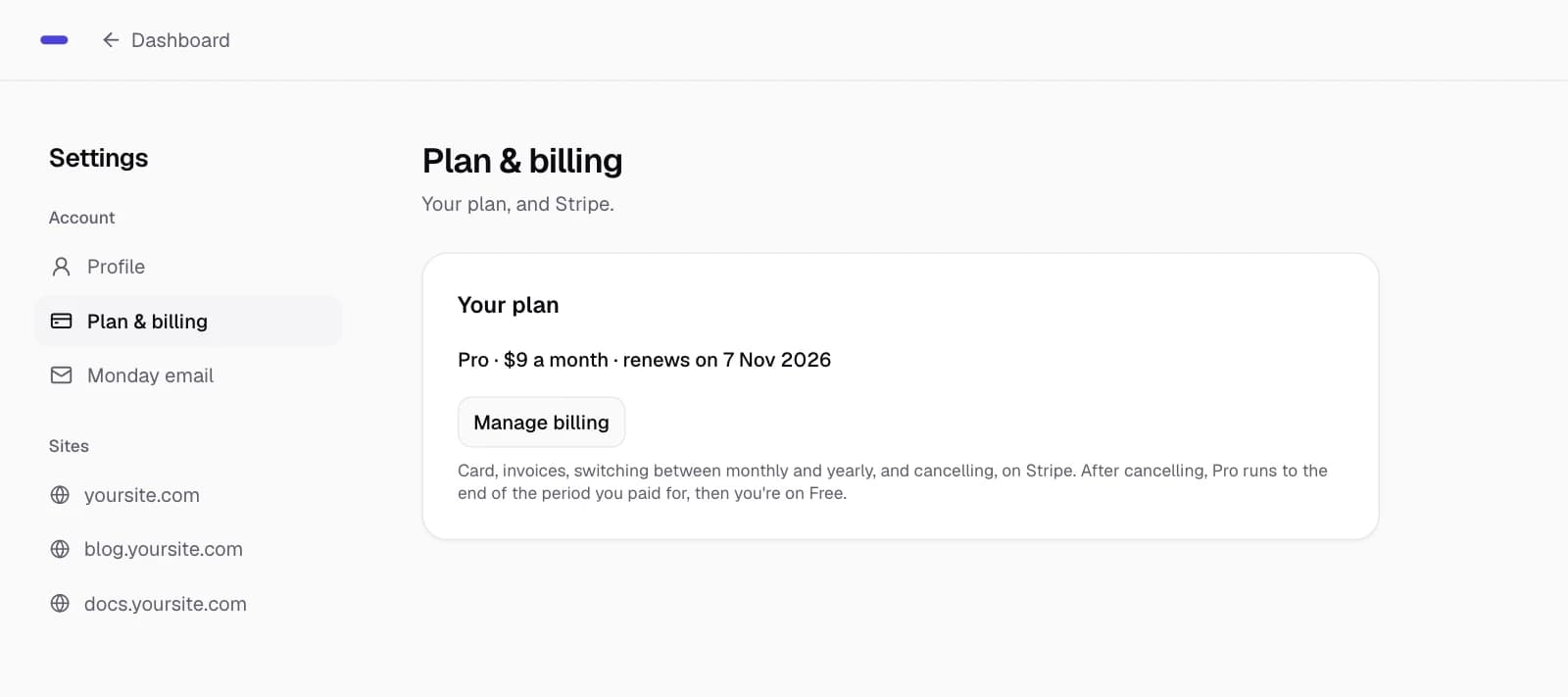
Settings has a menu on the left: Profile, Plan & billing and Monday email for your account, then one page per site. Billing goes through Stripe: upgrade, switch between monthly and yearly, update your card or cancel in a few clicks.
Open Settings
Choose Settings at the top right of the dashboard. To open one site's settings straight away, use the gear next to it in the site menu.
What's where
| Page | What you can do |
|---|---|
| Profile | See your name and email, sign out, disconnect Google, delete your account |
| Plan & billing | Upgrade to Pro, manage billing, see when your plan renews or ends |
| Monday email | Turn the Monday email on or off (Pro) |
| A site | Its public page, Google Search Console, revenue from Stripe, what counts as a sale, and removing the site |
Upgrade to Pro
Go to Plan & billing, choose Monthly ($9) or Yearly ($90, 2 months free), then Upgrade to Pro. Stripe's checkout page opens; after paying you're back on your dashboard with Pro active.
Prices include tax. Stripe is the merchant of record, so it handles sales tax and VAT, and SimpleDash never sees your card.
Manage billing
Once you're on Pro, Manage billing opens Stripe's billing page, where you can:
- update your card
- download invoices
- switch between monthly and yearly (Stripe shows the exact amount before you confirm)
- cancel
Cancel
Choose Manage billing, then cancel in Stripe. Pro keeps working until the end of the period you paid for, then your account moves to Free. Nothing is deleted. Plan & billing shows the date it ends, for example "Pro · $9 a month · ends on 2 Nov 2026".
If a payment fails
Plan & billing shows a note asking you to update your card. Pro keeps working while Stripe retries the payment. Update the card in Manage billing to keep it running.
Related
Last updated
What counts as a sale
With Pro, tell SimpleDash which GA4 event or thank-you page means a sale, to see where the people behind your sales first found you.
Disconnect or delete
Disconnect Google to pause SimpleDash and keep your settings, or delete your account to remove everything. What each one does, step by step.