What counts as a sale
With Pro, tell SimpleDash which GA4 event or thank-you page means a sale, to see where the people behind your sales first found you.
With Pro, the What brings customers card shows where the people behind your signups and sales first found you, next to the visit it happened on. For sales, tell SimpleDash what counts as one: a GA4 key event like purchase, or views of a thank-you page.
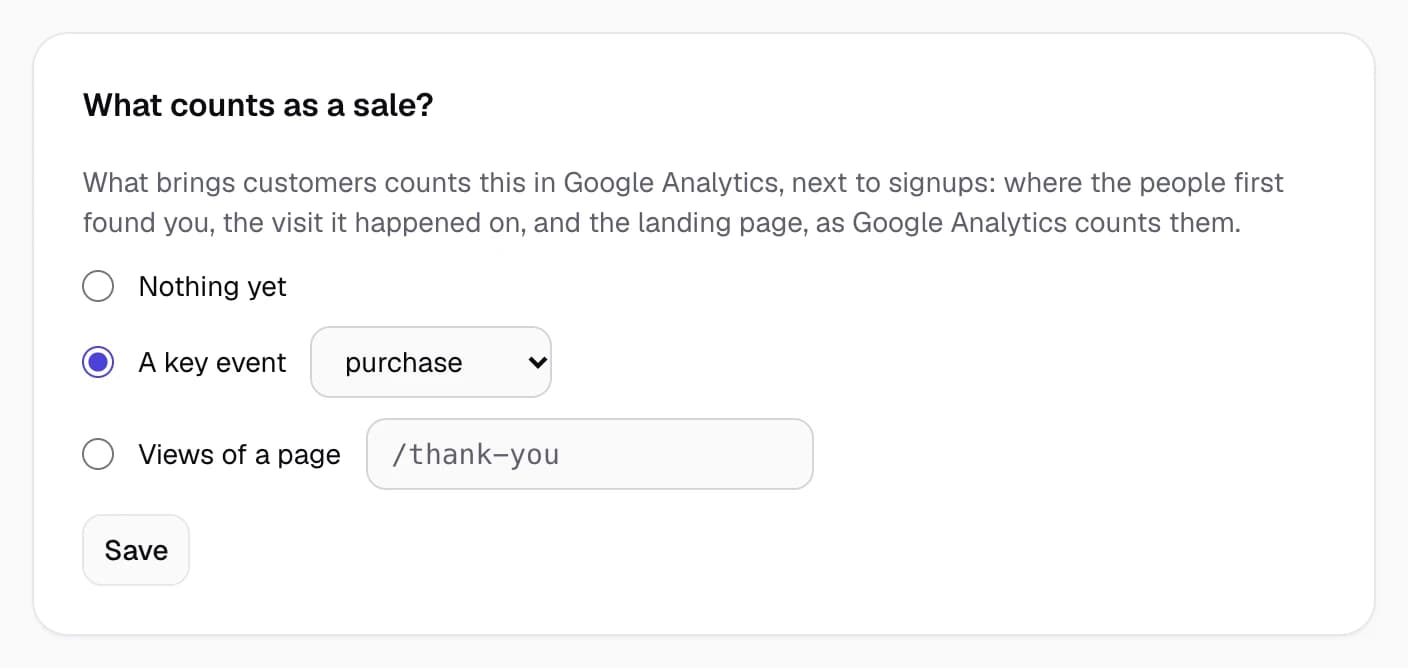
Choose it
Open the site's settings (the gear in the site menu) and find What counts as a sale?
- Nothing yet: the card shows signups only.
- A key event: pick one of your GA4 key events, usually
purchase. - Views of a page: type the path of the page people see after paying, such as
/thank-you.
Then choose Save.
Which one to pick
- If your checkout sends GA4's
purchaseevent, pick it. It's the most accurate. - If it doesn't, and buyers land on a thank-you page afterwards, use that page. Count sales from a thank-you page.
- If neither exists yet, track purchases in GA4 first.
The card
A Signups | Sales switch, then By source (First and Last visit), Paths (first visit → last visit) and Landing pages. Revenue (in More) appears only when GA4 itself has purchase values for the period (GA4's own sums, in your property's currency). Nothing is estimated. What brings customers explains each part.
Sales going to Stripe or PayPal?
If your sales show up under checkout.stripe.com or another payment page, GA4 is crediting the payment page instead of where the buyer came from. Fix it in two minutes.
Related
Last updated
Revenue from Stripe
With Pro, connect Stripe with a read-only key to see revenue, MRR and new customers next to your visitors. SimpleDash can read, never charge or change.
Settings and billing
Where every SimpleDash setting lives, how to upgrade to Pro, switch between monthly and yearly, update your card, see invoices and cancel.